Connect With RDP
Accessing Windows VMs via RDP Using Stack Console
Remote Desktop Protocol (RDP) enables you to securely connect to and manage your Windows Virtual Machine (VM) remotely. This guide provides a step-by-step process to access your Windows VM via RDP using Stack Console by retrieving the necessary credentials and establishing a secure connection.
Access the Instance Overview
- From the left side menu, locate and click on Instances.
- From Virtual Machine Instance page, select the VM instance you want to access.
- In the VM Overview tab, find the Username and Password fields and copy them for later use.
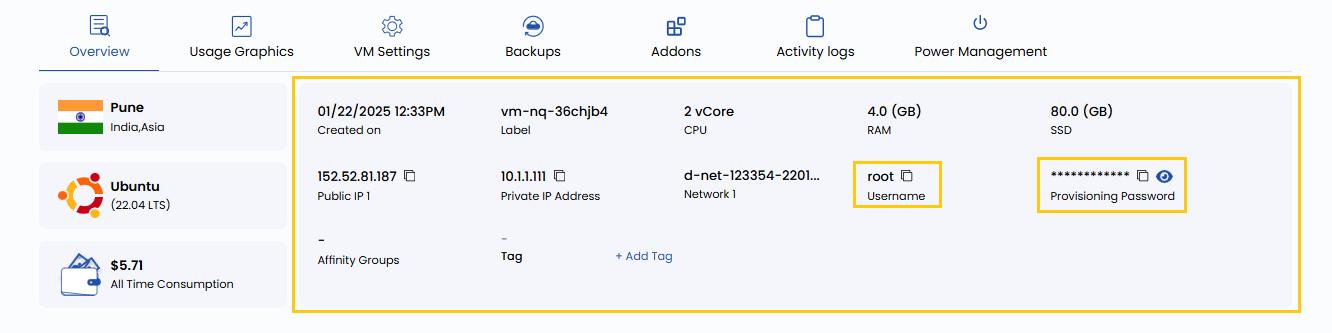
Launch the RDP Client
To connect to the VM, open an RDP client on your local machine:
-
Windows:
- Press Win + R, type
mstsc, and press Enter. - Alternatively, search for Remote Desktop Connection in the Start menu.
- Press Win + R, type
-
MacOS:
- Download Microsoft Remote Desktop from the Mac App Store if not already installed.
- Open the Microsoft Remote Desktop application.
-
Linux:
- Install an RDP client such as Remmina (if not installed, run
sudo apt install remminaon Ubuntu/Debian-based systems). - Open Remmina and select RDP as the connection protocol.
- Install an RDP client such as Remmina (if not installed, run
Connect to the Windows VM
- To open the RDP Client, launch the Remote Desktop Connection tool on your local machine.
- Find the Public IP Address of your VM in the Stack Console Overview tab.
- Provide the Public IP Address in the RDP client.
- When prompted, enter the Username and Password you copied from Stack Console.
- If a security warning appears about the identity of the remote machine the check the "Don't ask me again for connections to this computer" and click Yes.
- To initiate the connection, click OK or Connect to establish the remote session.
Managing Your Windows VM
Once connected to your VM via RDP, you can now:
- Fully control the Windows VM as if using it physically.
- Install software and configure system settings.
- Transfer files between your local machine and the VM using copy-paste or shared folders.
Conclusion
By following this guide, you can easily connect to and manage your Windows VM using Remote Desktop Protocol (RDP) via Stack Console. RDP provides a secure and efficient way to access your virtual machines, enabling you to perform administrative tasks, install software, and transfer files seamlessly. For further assistance, refer to the Stack Console documentation or reach out to support.
See also: